

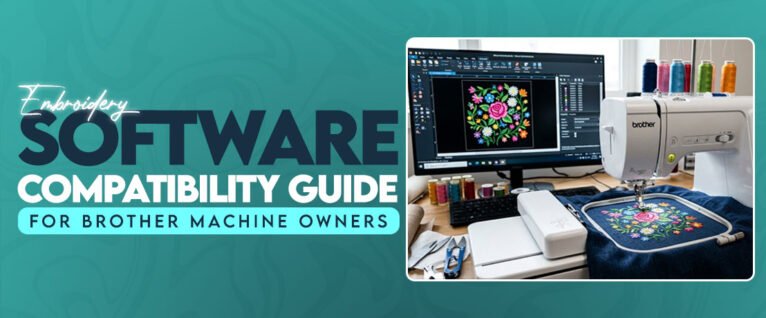
Why Brother Embroidery Owners Need to Check File Compatibility First
A design file that looks fine on a computer may not work correctly on a Brother embroidery machine. The problem is not always the design itself. Sometimes the file format, stitch settings, or machine model causes trouble during transfer. Checking compatibility before starting a project can save time and prevent wasted fabric.
Brother machines support specific embroidery formats, depending on the model. Many Brother embroidery machines use PES files, but owners should check their machine manual before downloading or transferring designs.
What to Check Before Using an Embroidery File
Before opening a design in your software, check these details:
File format: Make sure the software exports a format supported by your Brother machine.
Hoop size: The design dimensions must fit the available embroidery area.
Stitch count: A design with too many stitches may take longer to sew and can affect fabric quality.
Thread colors: Check whether the software displays the correct color sequence.
Design placement: Make sure the design fits the selected hoop without unwanted resizing.
Does Software Compatibility Affect Stitch Quality?
Yes. A compatible file is only one part of the process. Stitch density, underlay, pull compensation, and stitch direction also affect the final result.
For example, a small logo with too much density can cause thread breaks or stiff embroidery. Resizing a design without adjusting its stitch settings can also create gaps or uneven stitching.
This is where custom embroidery digitizing becomes useful. A properly digitized design is prepared for the fabric, size, and machine rather than simply converted into another file format.
Test the Design Before Production
Before stitching a large order, run a sample on similar fabric. Watch for:
Loose stitches or thread breaks.
Gaps between design sections.
Uneven lettering.
Fabric pulling around dense areas.
Brother machine owners should also keep their software updated and check export settings whenever they work with a new design.
A little preparation before transferring a file can prevent several problems during embroidery.
https://articles.yourneeds.asia/embroidery-software-compatibility-guide-for-brother-machine-owners/
A design file that looks fine on a computer may not work correctly on a Brother embroidery machine. The problem is not always the design itself. Sometimes the file format, stitch settings, or machine model causes trouble during transfer. Checking compatibility before starting a project can save time and prevent wasted fabric.
Brother machines support specific embroidery formats, depending on the model. Many Brother embroidery machines use PES files, but owners should check their machine manual before downloading or transferring designs.
What to Check Before Using an Embroidery File
Before opening a design in your software, check these details:
File format: Make sure the software exports a format supported by your Brother machine.
Hoop size: The design dimensions must fit the available embroidery area.
Stitch count: A design with too many stitches may take longer to sew and can affect fabric quality.
Thread colors: Check whether the software displays the correct color sequence.
Design placement: Make sure the design fits the selected hoop without unwanted resizing.
Does Software Compatibility Affect Stitch Quality?
Yes. A compatible file is only one part of the process. Stitch density, underlay, pull compensation, and stitch direction also affect the final result.
For example, a small logo with too much density can cause thread breaks or stiff embroidery. Resizing a design without adjusting its stitch settings can also create gaps or uneven stitching.
This is where custom embroidery digitizing becomes useful. A properly digitized design is prepared for the fabric, size, and machine rather than simply converted into another file format.
Test the Design Before Production
Before stitching a large order, run a sample on similar fabric. Watch for:
Loose stitches or thread breaks.
Gaps between design sections.
Uneven lettering.
Fabric pulling around dense areas.
Brother machine owners should also keep their software updated and check export settings whenever they work with a new design.
A little preparation before transferring a file can prevent several problems during embroidery.
https://articles.yourneeds.asia/embroidery-software-compatibility-guide-for-brother-machine-owners/
Why Brother Embroidery Owners Need to Check File Compatibility First
A design file that looks fine on a computer may not work correctly on a Brother embroidery machine. The problem is not always the design itself. Sometimes the file format, stitch settings, or machine model causes trouble during transfer. Checking compatibility before starting a project can save time and prevent wasted fabric.
Brother machines support specific embroidery formats, depending on the model. Many Brother embroidery machines use PES files, but owners should check their machine manual before downloading or transferring designs.
What to Check Before Using an Embroidery File
Before opening a design in your software, check these details:
File format: Make sure the software exports a format supported by your Brother machine.
Hoop size: The design dimensions must fit the available embroidery area.
Stitch count: A design with too many stitches may take longer to sew and can affect fabric quality.
Thread colors: Check whether the software displays the correct color sequence.
Design placement: Make sure the design fits the selected hoop without unwanted resizing.
Does Software Compatibility Affect Stitch Quality?
Yes. A compatible file is only one part of the process. Stitch density, underlay, pull compensation, and stitch direction also affect the final result.
For example, a small logo with too much density can cause thread breaks or stiff embroidery. Resizing a design without adjusting its stitch settings can also create gaps or uneven stitching.
This is where custom embroidery digitizing becomes useful. A properly digitized design is prepared for the fabric, size, and machine rather than simply converted into another file format.
Test the Design Before Production
Before stitching a large order, run a sample on similar fabric. Watch for:
Loose stitches or thread breaks.
Gaps between design sections.
Uneven lettering.
Fabric pulling around dense areas.
Brother machine owners should also keep their software updated and check export settings whenever they work with a new design.
A little preparation before transferring a file can prevent several problems during embroidery.
https://articles.yourneeds.asia/embroidery-software-compatibility-guide-for-brother-machine-owners/

 English
 Arabic
 French
 Spanish
 Portuguese
 Deutsch
 Turkish
 Italiano
 Russian
 Romaian
 Portuguese (Brazil)
 Greek