


Data Migration from G Suite to Office 365: Complete Guide (2026)
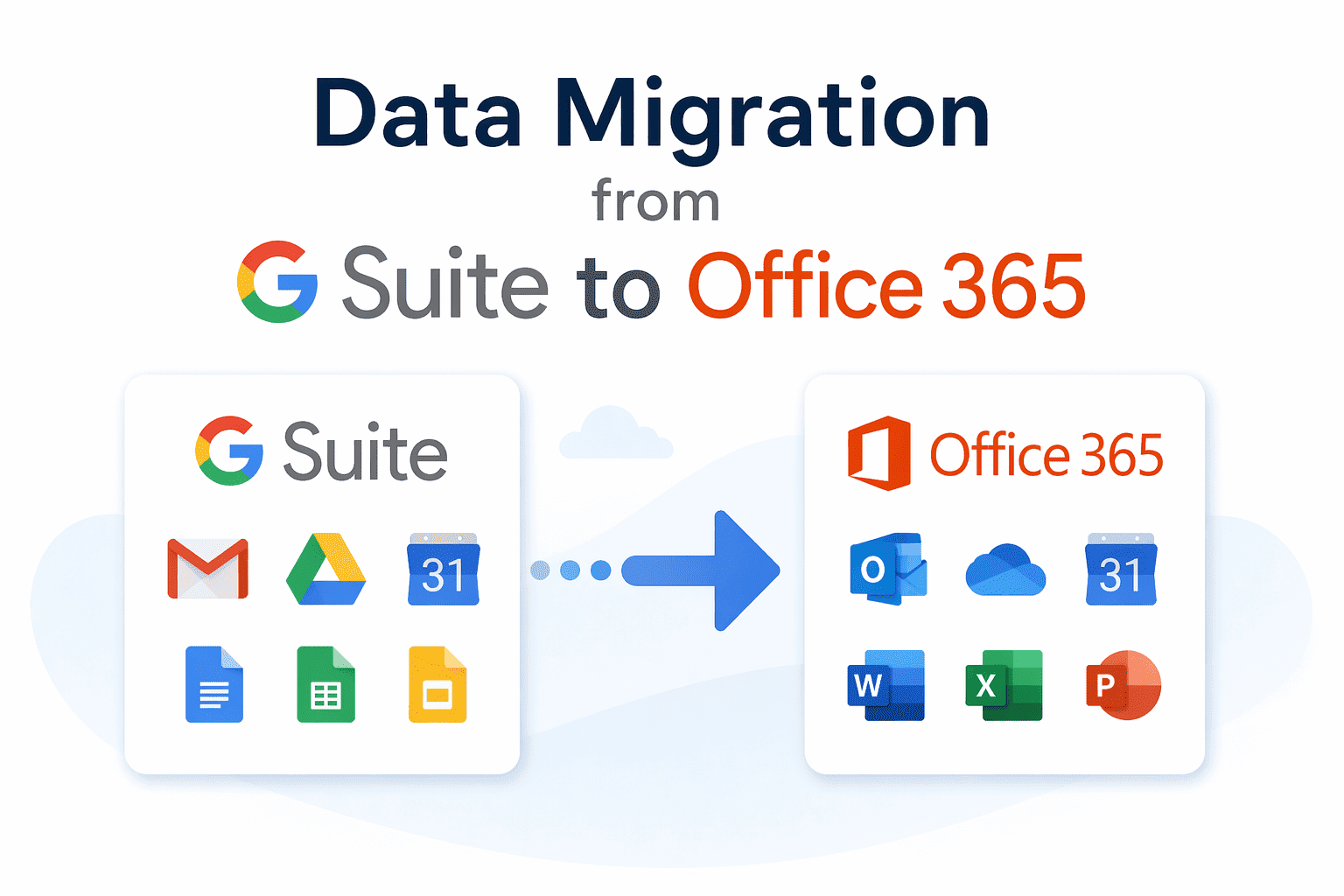
In today’s digital-first world, businesses are constantly evolving their cloud ecosystem. One of the most common transitions is data migration from G Suite (Google Workspace) to Office 365 (Microsoft 365). Whether driven by better integration, advanced security, or enterprise-level tools, this migration has become a strategic move for organizations of all sizes.
This comprehensive guide will walk you through everything you need to know—from reasons and prerequisites to step-by-step methods—along with the easiest way to perform a seamless migration.
Why Migrate Data from G Suite to Office 365?
Before diving into the process, it’s important to understand why businesses switch platforms.
- Microsoft 365 integrates deeply with tools like Outlook, Teams, Excel, and SharePoint, offering a more unified work environment.
- Compared to Google Workspace, Microsoft 365 provides enhanced compliance, security, and administrative control—ideal for growing organizations.
- Office applications allow offline work with seamless cloud sync—something many enterprises prefer.
- Microsoft offers multiple subscription tiers suited for small businesses to large enterprises.
What Data Can Be Migrated?
When performing data migration from G Suite to Office 365, you can transfer:
- Emails (Gmail to Outlook)
- Contacts
- Calendars
- Mailbox rules (limited)
Microsoft confirms that these core data types can be migrated using built-in or third-party tools. However, some limitations exist:
- Shared calendars may not migrate fully
- Gmail labels convert differently into folders
- Certain settings (like vacation responders) are not transferred
Pre-Migration Checklist
Before starting the migration, ensure the following prerequisites are completed:
- Your domain must be verified in Office 365.
- All users from Google Workspace should be created in Microsoft 365 beforehand.
- Always take a backup to avoid accidental data loss.
- Microsoft recommends disabling MRM or archive policies to avoid missing items during migration.
- You can migrate data in batches or all at once depending on organization size.
Methods for Data Migration from G Suite to Office 365
Microsoft provides built-in migration options through the Exchange Admin Center.
- Login to Microsoft 365 Admin Center
- Go to Exchange Admin Center
- Navigate to Recipients → Migration
- Create a new migration batch
- Select “G Suite (Gmail)” as source
- Enter user details and credentials
- Start migration
This method works best for small organizations with limited data.
Drawbacks:
- Complex configuration
- Requires technical knowledge
- Risk of errors and incomplete migration.
Migrate Google Workspace Data to Microsoft 365 with Professional Tool
If you want a hassle-free and secure migration, using a professional solution is highly recommended. SysTools Google Workspace to Microsoft 365 Migration Tool is designed to eliminate all the complexities of manual migration.
Key Features:
- Migrate emails, contacts, and calendars in one go
- Bulk user migration support
- Advanced filtering options
- Maintains folder hierarchy and data integrity
- No data loss during transfer
- User-friendly interface (no technical skills required)
Why It Stands Out:
Unlike manual methods, your tool ensures a direct and secure migration process without complicated configurations. It also saves hours of effort and minimizes downtime. This makes it ideal for businesses, IT admins, and agencies handling large-scale migrations.
Step-by-Step Migration Using a Professional Tool
Here’s a general workflow using an automated solution:
- Install and launch the migration tool
- Choose G Suite and Microsoft 365 as source and destination.
- Select Workload and apply date filter.
- Login with Google Workspace admin credentials. Click Validate button.
- Authenticate Microsoft 365 admin account. Press Validate button.
- Map users between platforms
- Start migration
The tool handles everything automatically, ensuring smooth execution.
Challenges in G Suite to Office 365 Migration
Even though migration seems simple, there are some real-world challenges:
- Google labels vs Outlook folders can cause confusion.
- Improper planning may lead to email disruption.
- Migration speed depends on mailbox size and bandwidth.
- Users may need training to adapt to Microsoft tools.
Best Practices for Successful Migration
To ensure a smooth transition:
- Run a pilot migration before full deployment
- Migrate in batches
- Monitor migration reports
- Inform users about downtime
- Provide training post-migration
Planning plays a critical role in successful migration execution.
Post-Migration Tasks
After completing migration, don’t forget these steps:
- Point your domain to Office 365 mail servers.
- Check emails, contacts, and calendars.
- Set up Outlook for all users.
- Once everything is verified, you can safely disable old accounts.
How Long Does Migration Take?
The duration depends on:
- Number of users
- Mailbox size
- Internet speed
- Migration method used
For example, small migrations may take a few hours, while enterprise-level migrations can take days.
Final Thoughts
Data migration from G Suite to Office 365 is a strategic move that can significantly enhance productivity, collaboration, and security. While manual methods are available, they often come with complexity and risks. For a smooth, fast, and error-free experience, using a tool is the best approach. It simplifies the entire process, reduces downtime, and ensures your business data is transferred securely.
 French
 English
 Arabic
 Spanish
 Portuguese
 Deutsch
 Turkish
 Dutch
Dutch
 Italiano
 Russian
 Romaian
 Portuguese (Brazil)
 Greek
Greek
